Booking a flight has never been easier. With one simple search, travellers can compare thousands of flights to instantly find the cheapest, fastest, and best value flights using Skyscanner. In this guide, we’ll show you how to book a flight in just a few simple steps.
How to book a flight using the Skyscanner App
Step 1: Download the Skyscanner App.
The Skyscanner App lets you search for flights, store flight information, and set up price alerts that will send you a notification whenever a flight price changes. Once your flight is booked, the app will let you know essential travel information as your departure time nears.
Step 2: Search for flights.
Type in your departure city, destination city, the dates you’d like to travel, and how many passengers will be travelling. Choose between a return, one way, or multi-city ticket.
Next, you’ll be shown all available flights. You can sort the flights by price, rating, duration, outbound take off time, outbound landing time, return take off time, and return landing time.

You can also filter the flights by stops, duration, times, airlines, airports, and mobile sites.
Step 3: Select a flight and review the details.
Once you see a flight you like, click on it to review the trip details. Scroll down to see any information that might be important to your flight. We’ll notify you of long layovers, late arrivals, airport changes, and more.
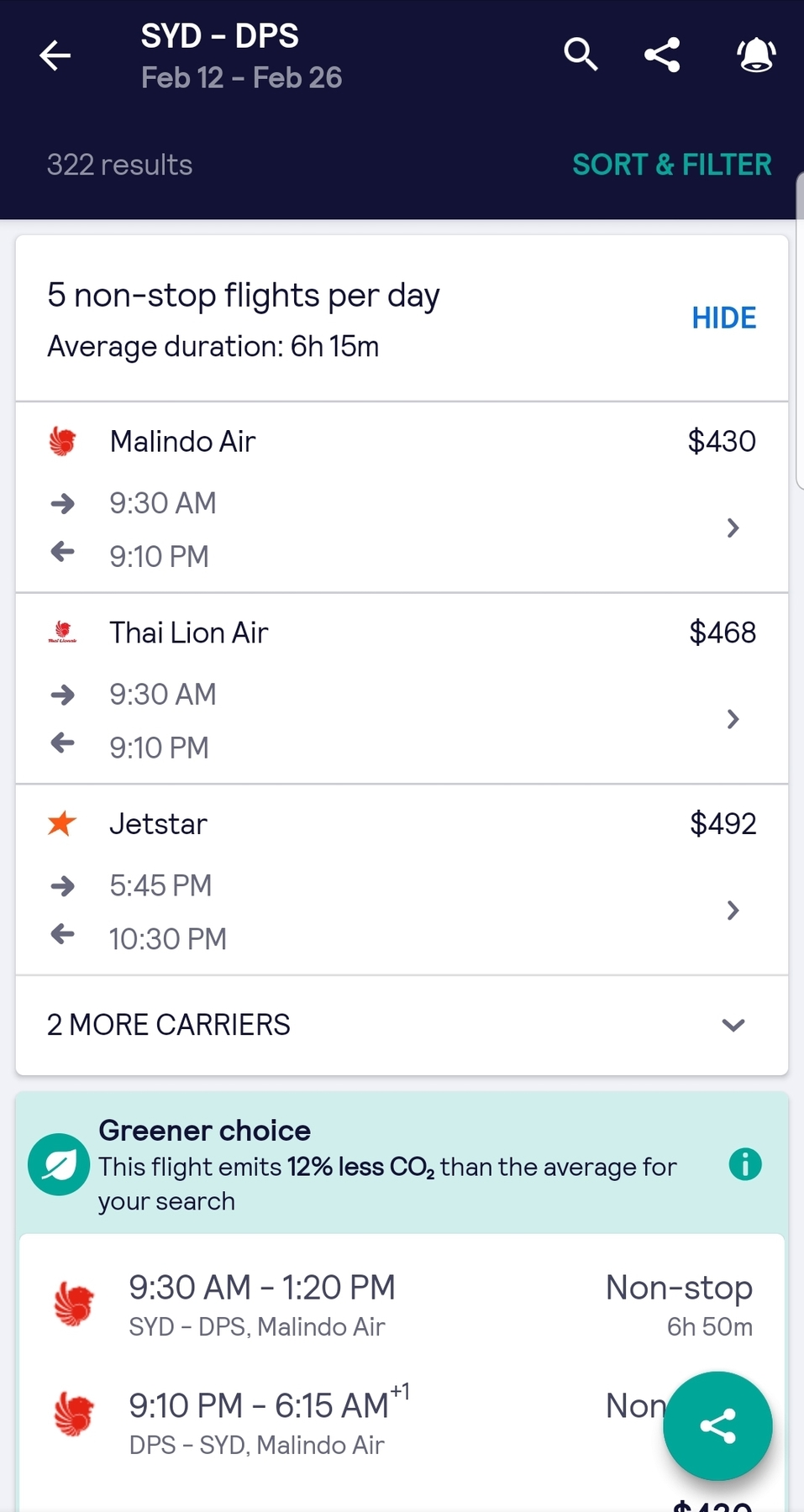
Step 4: Select the online travel agent or airline that you’d like to purchase the flight from.
In this example, we’ll choose the pink “Book” button. This allows us to book through the Skyscanner App.

Step 5: Type in your personal information.
After you select your flight, you’ll be redirected to book with an online travel agent or airline. There, you can type in your passenger details and discover the total cost of the flight.
Step 5: Add extras.
Before you complete your booking, you’ll be prompted to add any extras like luggage, meals, lounge passes, seat selection, travel insurance, and more.
Pay close attention to the luggage allowance and meal options as not all flights offer them for free. If you think you’ll need extra baggage, it’s almost always cheaper to add it during the initial booking process rather than adding it later.
Step 6: Input your payment information to complete your booking.
Sometimes, certain credit cards or payment methods accrue extra fees.
Step 7: Check your email for your flight confirmation.
Your flight confirmation should arrive within 24 hours of booking your flight. Always read through your flight confirmation immediately just in case there are any errors. Once you’ve confirmed your flight, put it into the Skyscanner App so that you can stay updated with any flight changes.
How to book a flight using the Skyscanner desktop website
Similar to the steps above, you can book your flight using the Skyscanner desktop website.
Step 1: Search for your flight route and dates on Skyscanner.com.au.
In this example, we’re searching for the exact same flight as above.

Step 2: You’ll be taken to a list of all available flights.
You can easily sort the flights by best value, cheapest, and fastest. The filters on the left side of the screen will allow you to customise your flight even further.

Step 3: Select your online travel agent or airline to purchase the flight from.
In this example, we’ve chosen to book the flight through the Skyscanner website, which will stand out with a pink “Book” button. You will also see a plane icon and “Book on Skyscanner” listed below the flight provider.
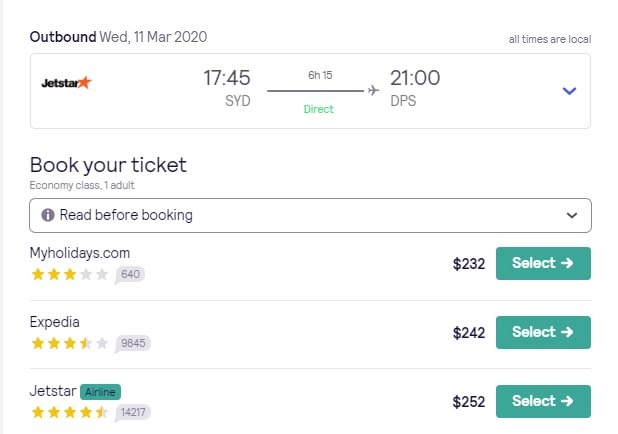
Step 4: Skyscanner will redirect you to book with the airline or online travel agent.
Step 5: Enter your personal information.
Step 6: Choose extra luggage, meals, seat selection, and any other extra add-on features.
Step 7: Confirmation.
You will receive a confirmation of your booking within 24 hours.
Are you ready to book a flight for yourself? Skyscanner Australia can help you find flights, hotels, and cheap car hire options for your next trip.


